Beyond Dark Mode: Mastering iPhone's Invert Colors for Optimal Visual Comfort
The iPhone display is a marvel of modern engineering, offering vibrant colors, incredible brightness, and intricate detail. However, the optimal viewing experience isn't just about raw technical specifications; it's deeply personal and depends heavily on individual visual needs and environmental conditions. While Apple's Dark Mode has become a ubiquitous solution for reducing eye strain in low-light environments and offering a sleek aesthetic, it represents just one facet of the iPhone's comprehensive suite of display accessibility tools. Often overlooked, but equally powerful, are the Invert Colors features: Classic Invert and Smart Invert.
Editor's pick: iPhone screen protectors on Amazon → As an Amazon Associate, this site earns from qualifying purchases.
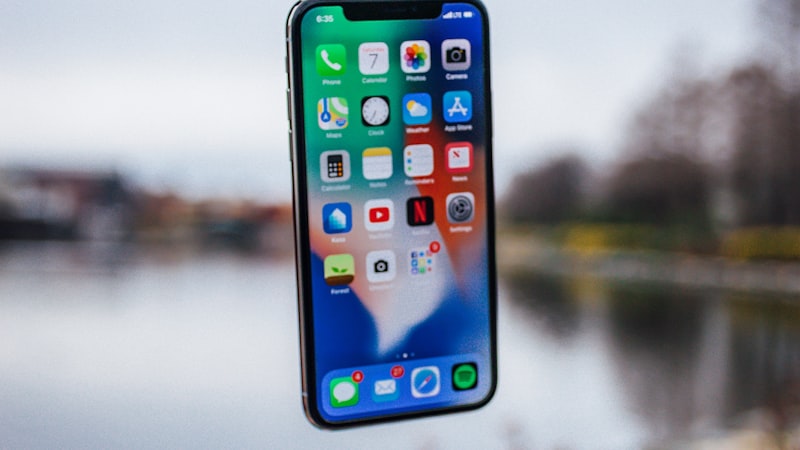
These two distinct settings provide an alternative, and for many, a superior, pathway to visual comfort, particularly for users with specific accessibility requirements or those seeking a truly unique display presentation. Understanding their mechanics, benefits, and differences from Dark Mode is key to unlocking the full potential of your iPhone's screen for tailored viewing.
Understanding the Invert Colors Spectrum
Classic Invert: The Digital Negative
Classic Invert is the more straightforward of the two, and perhaps the most visually striking. When enabled, it performs a complete inversion of all colors displayed on your iPhone screen. Black becomes white, white becomes black, and every other color shifts to its complementary hue on the color wheel. The result is akin to viewing a photographic negative.
Historically, Classic Invert was a primary accessibility feature for users with severe photophobia (extreme sensitivity to light) or certain visual impairments where high contrast and inverted luminescence proved beneficial. While it provides an undeniable reduction in overall screen brightness and a stark contrast, its indiscriminate approach means that images, videos, and app icons are also inverted, often rendering them visually distorted and difficult to interpret. For this reason, its use is typically reserved for those with specific needs where visual fidelity of media is secondary to absolute contrast and brightness reduction.
Smart Invert: The Intelligent Alternative
Recognizing the limitations of Classic Invert, Apple introduced Smart Invert, a significantly more sophisticated and user-friendly option. Smart Invert attempts to invert the colors of the user interface (UI) without affecting the appearance of images, media, and some apps that have already adopted dark color styles. This means text and background colors in apps that don't natively support Dark Mode will be inverted, but photos in your camera roll, video playback, and many web images will retain their original, non-inverted appearance.
The intelligence behind Smart Invert allows it to provide many of the benefits of inverted colors – reduced brightness and increased contrast for text – while largely preserving the visual integrity of content that relies on specific color palettes. It's a nuanced approach designed to offer a more comfortable and less jarring experience for a wider range of users, making it a compelling alternative to Dark Mode in many scenarios.
Smart Invert vs. Dark Mode: A Crucial Distinction
At first glance, Smart Invert might seem redundant if you're already using Dark Mode. However, their underlying mechanisms and intended applications are fundamentally different.
- Dark Mode: This is a system-wide aesthetic preference that apps can choose to adopt. When an app supports Dark Mode, its developers have designed specific dark-themed UI elements and color palettes. It's a proactive design choice.
- Smart Invert: This is an operating system-level display filter. It doesn't rely on app developers to implement a dark theme; instead, it analyzes the pixels on the screen and intelligently inverts colors that appear to be part of the UI, while attempting to leave others (like images) untouched. It's a reactive visual adjustment.
This distinction is critical. If you use an app that doesn't offer a Dark Mode option, Smart Invert can effectively "force" a dark appearance, providing a more comfortable viewing experience without sacrificing media fidelity. It acts as a universal dark theme for a broader range of content, making it invaluable for reading articles in web browsers or legacy apps that haven't updated to support system-wide Dark Mode.
Practical Applications and Benefits
Beyond simply changing the aesthetic, Invert Colors features offer tangible benefits:
- Enhanced Accessibility: For individuals with specific visual impairments, such as certain forms of low vision or extreme light sensitivity, the high contrast and reduced luminance provided by Classic Invert or Smart Invert can significantly improve readability and reduce eye strain.
- Improved Reading Comfort: When reading extensively in low-light conditions, an inverted display can make text easier to process. The darker background with lighter text can reduce the amount of light emitted from the screen, making for a more comfortable reading experience compared to a bright white background, even with Dark Mode enabled.
- Broader Dark Theme Coverage: As noted, Smart Invert can bring a dark appearance to apps and websites that lack native Dark Mode support, ensuring a consistent visual experience across your device.
While some users might wonder about battery life implications, particularly on OLED screens where black pixels are truly off, the primary benefit of Invert Colors is visual comfort and accessibility. Smart Invert, being a post-processing filter, may not offer the same direct battery savings as a natively designed Dark Mode, but the comfort it provides can be invaluable.
Enabling Invert Colors on Your iPhone
Activating these features is straightforward:
- Open the Settings app.
- Tap Accessibility.
- Select Display & Text Size.
- Scroll down to the Invert Colors section.
- Toggle Smart Invert or Classic Invert on or off.
For quick access, you can also add Invert Colors to the Accessibility Shortcut. Go to Settings > Accessibility > Accessibility Shortcut and select Smart Invert. Then, a triple-click of the Side button (or Home button on older models) can toggle the feature on or off instantly.
Considerations and Trade-offs
While powerful, Invert Colors aren't without their nuances:
- Visual Fidelity Compromises: Classic Invert, by its nature, will always distort images and videos. Smart Invert is far better but can still occasionally misinterpret certain UI elements or non-standard graphical content, leading to an unexpected appearance.
- App-Specific Quirks: Although Smart Invert is intelligent, some apps might have unique rendering methods that cause them to look slightly off even with Smart Invert enabled. User testing is often the best way to discover these individual quirks.
- Personal Preference: Ultimately, the choice between Dark Mode, Smart Invert, or no inversion comes down to individual preference and visual needs. Experimenting with each setting in different lighting conditions and with various apps will help you determine the optimal configuration for your comfort.
The iPhone's display is designed to be adaptable, and features like Classic Invert and Smart Invert are testament to Apple's commitment to comprehensive accessibility. By understanding and utilizing these powerful tools, you can move beyond the conventional Dark Mode and tailor your iPhone's visual output to perfectly match your personal comfort and accessibility requirements, ensuring an optimal viewing experience every time you pick up your device.