Mastering iPhone Display Contrast: A Guide to Reducing White Point for Enhanced Eye Comfort
Mastering iPhone Display Contrast: A Guide to Reducing White Point for Enhanced Eye Comfort
The iPhone display is renowned for its vibrancy and clarity, but sometimes, its brilliance can be overwhelming, particularly in dimly lit environments or for users sensitive to bright screens. Apple includes a powerful yet often overlooked accessibility feature called "Reduce White Point" that allows users to fine-tune the intensity of the brightest colors on their display. This guide will explore what Reduce White Point does, how it benefits your eye comfort and viewing experience, and how to effectively integrate it into your daily iPhone use.
Editor's pick: iPhone screen protectors on Amazon → As an Amazon Associate, this site earns from qualifying purchases.
Understanding White Point on Your Display
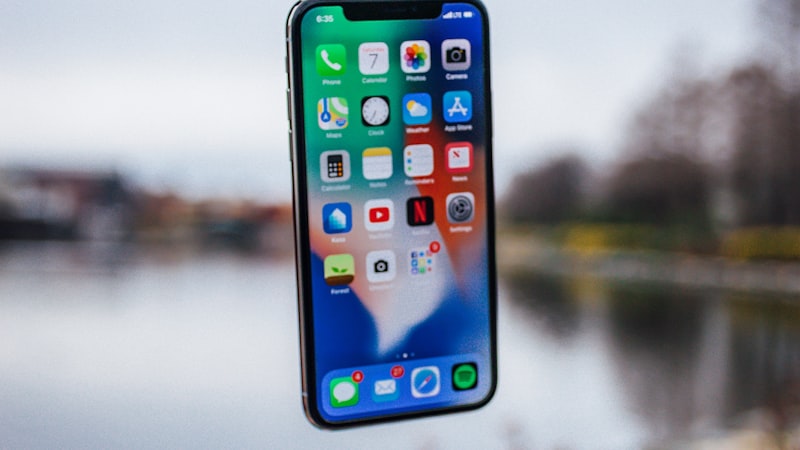
In simple terms, "white point" refers to the whitest white your display can produce. It's the brightest point in the color spectrum that your screen renders. On an iPhone, this white is typically very bright and pure, designed to provide excellent visibility and color accuracy under various conditions. However, this high luminance can contribute to eye strain, especially during prolonged use or when viewing content in dark rooms. Reducing the white point essentially lowers the intensity of these bright whites, making the overall display appear softer without necessarily dimming the entire screen in the same way the brightness slider does.
The Benefits of Reducing White Point
Adjusting the white point offers several tangible benefits, primarily centered around visual comfort and display dynamics:
- Enhanced Eye Comfort: For many users, especially those with light sensitivity, a reduction in white point can significantly alleviate eye strain. It makes reading and browsing more comfortable, particularly in the evening or at night.
- Improved Perceived Contrast: By toning down the brightest whites, the relative difference between light and dark elements on the screen can appear more pronounced. This can lead to a perception of higher contrast, making text and images stand out more clearly.
- Optimized for Low-Light Environments: When using your iPhone in a dark room, even the lowest brightness setting can sometimes feel too intense. Reduce White Point provides an additional layer of control, allowing for a truly comfortable low-light viewing experience.
- Potential for Battery Savings: While not its primary function, reducing the overall luminance of the display can marginally contribute to battery longevity, as the pixels are driven with less power.
How to Adjust Reduce White Point on Your iPhone
Accessing and adjusting this setting is straightforward:
- Open the Settings app on your iPhone.
- Scroll down and tap on Accessibility.
- Under the "Vision" section, tap on Display & Text Size.
- Scroll down until you find the toggle for Reduce White Point.
- Tap the toggle to turn it on. Once activated, a slider will appear below it.
- Drag the slider to the left or right to increase or decrease the intensity of the white point reduction. A higher percentage means a greater reduction in the intensity of white colors.
Experiment with the slider to find a level that feels most comfortable for your eyes. You'll notice the change in real-time as you adjust it.
Finding Your Optimal Setting
The ideal Reduce White Point setting is highly personal and can vary based on your environment and specific visual needs. Consider these factors:
- Environment: You might prefer a higher reduction percentage when reading in bed at night compared to using your phone outdoors in daylight.
- Content: For general browsing and text, a moderate reduction might suffice. For photo editing or tasks requiring precise color representation, you might want to disable it or set it to a very low percentage.
- Personal Sensitivity: Some individuals are more sensitive to bright light than others. Adjust based on your comfort level rather than aiming for a specific number.
It's also important to understand how Reduce White Point interacts with other display settings. For instance, it can work in conjunction with True Tone, which dynamically adjusts the display's color and intensity to match the ambient light, and Night Shift, which shifts the display to the warmer end of the spectrum after sunset to reduce blue light exposure. While Night Shift changes color temperature, Reduce White Point specifically targets the luminance of white, offering a complementary effect for comprehensive eye comfort. Similarly, while Dark Mode changes the interface's color scheme to black backgrounds with white text, Reduce White Point can further soften the white text's intensity.
Reduce White Point: A Key to Comprehensive Display Comfort
In the broader landscape of iPhone display optimization, Reduce White Point stands out as a crucial tool for personalized viewing comfort. While settings like brightness control, Night Shift, and Dark Mode are widely used, Reduce White Point offers a granular adjustment that directly addresses the intensity of the brightest elements on your screen. It’s particularly valuable for those who find even the lowest brightness settings too piercing in dark environments or for individuals seeking to minimize eye strain during extended use. This feature, alongside others like font size adjustments and color filters, underscores Apple's commitment to making iPhone displays accessible and comfortable for everyone. By taking a few moments to understand and adjust this setting, you can unlock a more pleasant and visually forgiving iPhone experience, ensuring your device works optimally for your eyes.