Mastering iPhone Display Accessibility for Enhanced Reading Comfort and Visual Health
In an era where our iPhones are central to daily life, from communication to content consumption, the cumulative effect of screen time on our visual health is a growing concern. While Apple's displays are renowned for their quality, relying solely on default settings can lead to eye strain, particularly during extended reading sessions or in varying light conditions. Fortunately, the iPhone offers a robust suite of accessibility features designed not just for users with specific visual impairments, but for anyone seeking to personalize their display for optimal comfort and reduced fatigue.
Editor's pick: iPhone screen protectors on Amazon → As an Amazon Associate, this site earns from qualifying purchases.
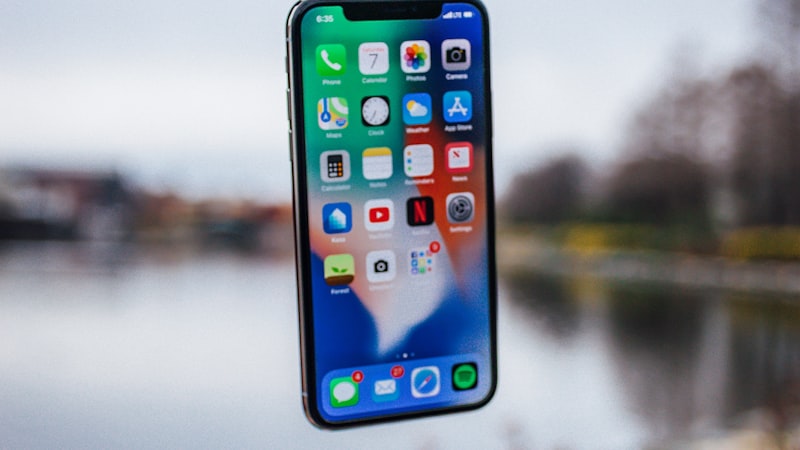
This article delves into these often-overlooked settings, demonstrating how you can fine-tune your iPhone's screen to better suit your individual visual needs, transforming your viewing experience from a generic default into a highly personalized and comfortable one.
Beyond Brightness: Foundational Display Comfort
Most iPhone users are familiar with fundamental display adjustments like brightness sliders, True Tone, and Night Shift. True Tone automatically adapts your display's white balance to match the ambient light, making colors appear consistent and natural. Night Shift, on the other hand, shifts the display to the warmer end of the color spectrum after sunset, reducing blue light exposure which can interfere with sleep patterns. These features provide a good baseline for general visual comfort, but Apple's accessibility options allow for far more granular control, addressing specific challenges like text readability, contrast, and color perception.
Tailoring Text for Your Eyes
One of the most immediate ways to improve reading comfort is by customizing how text appears on your screen. The iPhone provides several powerful options:
Adjusting Text Size and Boldness
Navigating to Settings > Display & Brightness > Text Size allows you to drag a slider to increase or decrease the dynamic type size across many apps. For those who find text too light or difficult to distinguish, enabling Bold Text under Accessibility > Display & Text Size can significantly improve readability by making all text heavier and more prominent. These adjustments are particularly beneficial for users with presbyopia or mild visual impairments, making on-screen content less strenuous to read for prolonged periods.
Increasing Contrast for Clarity
Under Accessibility > Display & Text Size, the Increase Contrast option enhances the contrast between app foreground and background colors. This makes text, buttons, and other user interface elements stand out more clearly, which can be invaluable in reducing the effort required to parse information, especially in brightly lit environments or for users sensitive to low contrast designs.
Calibrating Color and Brightness with Display Accommodations
Beyond text, the iPhone's Display Accommodations offer advanced controls to fine-tune color, brightness, and overall visual intensity:
Reduce White Point
Excessively bright white backgrounds can cause glare and eye strain, particularly in low-light settings. The Reduce White Point feature, found under Accessibility > Display & Text Size > Reduce White Point, allows you to decrease the intensity of bright colors on the screen. This is distinct from simply lowering overall brightness, as it specifically targets the brightest whites, making the screen feel softer and less harsh on the eyes.
Color Filters for Specific Needs
For users with color vision deficiencies or those who prefer a different color tint for comfort, Color Filters (under Accessibility > Display & Text Size > Color Filters) are transformative. You can choose from various preset filters like Grayscale, Red/Green Filter, Green/Red Filter, or Blue/Yellow Filter. Furthermore, the Color Tint option allows you to apply a custom hue and intensity across the entire display. This can be used to mitigate specific color sensitivities or simply to create a warmer, less stimulating screen environment beyond what Night Shift offers, which can be particularly useful for late-night reading.
Smart Invert and Classic Invert
While iOS offers a system-wide Dark Mode, some apps may not fully support it or users might prefer a more aggressive inversion. Smart Invert (found in the same Display & Text Size menu) inverts most display colors but leaves images, media, and certain dark-style apps unchanged. This offers a true dark mode experience. Classic Invert, by contrast, inverts all colors on the display. These options provide powerful alternatives for reducing screen brightness and contrast, especially useful for reading in dark environments or for users who find white backgrounds overwhelming.
Zoom and Magnifier for Detailed Focus
For moments when you need to focus on fine details, the iPhone provides two distinct tools. The Zoom feature (under Accessibility > Zoom) allows you to magnify specific areas of the screen, either in a windowed view or full-screen, which is excellent for inspecting small text or images. Additionally, the standalone Magnifier app leverages your iPhone's camera to enlarge real-world objects, acting as a digital magnifying glass for physical documents or labels.
A Holistic Approach to Display Health
Integrating these accessibility features into your daily iPhone use can significantly enhance long-term visual comfort. They empower you to create a display environment that actively reduces eye strain and fatigue, making your device more pleasant to use for extended periods. It is worth noting that while software adjustments are crucial, physical screen protection, as we explored in our buyer's guides on tempered glass and matte protectors at iPhone View, also contributes to the overall visual experience by reducing glare and potential damage.
We encourage you to experiment with these settings. What works for one person may not work for another, and personalizing your iPhone's display is about discovering the optimal configuration for your unique visual needs. By taking advantage of these powerful, built-in tools, you can transform your iPhone into a more comfortable and visually supportive device.