Optimizing Your iPhone Display with Dark Mode: Beyond Aesthetic Preference
Since its introduction, Dark Mode on iPhone has become more than just a stylistic choice. What began as an intriguing visual theme has evolved into a fundamental display setting, influencing everything from eye comfort and battery longevity to overall user interaction. For many, it's a permanent fixture; for others, a context-dependent utility. This article delves into the technical underpinnings and practical benefits of Dark Mode, helping you optimize your iPhone display experience.
Editor's pick: iPhone screen protectors on Amazon → As an Amazon Associate, this site earns from qualifying purchases.
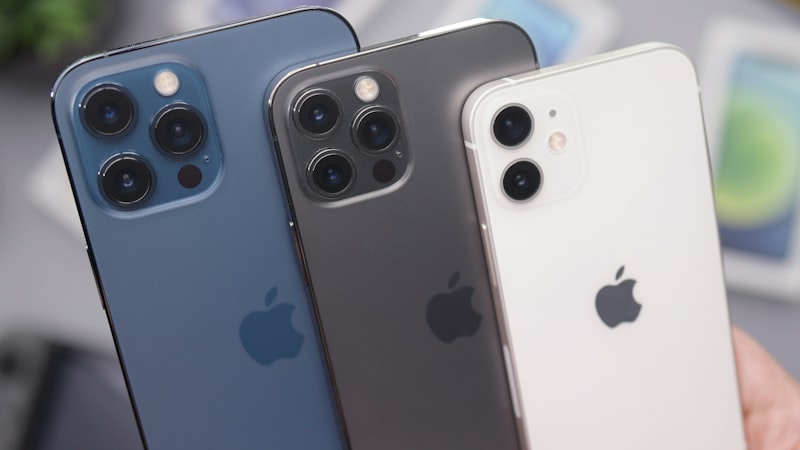
The Technical Basis: How Dark Mode Engages Your Display
At its core, Dark Mode fundamentally alters how your iPhone's display renders content. For iPhones featuring OLED (Organic Light Emitting Diode) screens, this difference is particularly pronounced and advantageous. Unlike LCD panels, where a constant backlight illuminates all pixels, OLED pixels generate their own light. This means when a pixel needs to display black, it simply turns off.
This 'true black' capability is central to Dark Mode's impact. When your screen is predominantly black, a significant portion of its pixels are inactive. This not only creates a starker contrast between text and background, enhancing readability for many, but also has direct implications for power consumption. The deeper, richer blacks provide a visually striking aesthetic, but the functional benefits extend well beyond mere appearance.
Dark Mode and Eye Comfort: Reducing Strain
One of the most frequently cited benefits of Dark Mode is its potential to reduce eye strain, especially in low-light environments. Bright white screens can be harsh on the eyes, particularly when viewed in a dimly lit room, leading to fatigue and discomfort. Dark Mode mitigates this by presenting lighter text on a dark background, which requires less light emission from the display.
However, the relationship between Dark Mode and eye comfort isn't universally straightforward. While many users report reduced strain, particularly those sensitive to bright lights, some individuals, especially those with astigmatism, may find light text on a dark background harder to read. This is due to a phenomenon called 'halation,' where the bright text can appear to bleed into the dark background, making letters seem less sharp. Experimentation is key to determining personal comfort.
Furthermore, Dark Mode complements other display accessibility features. While it doesn't directly reduce blue light in the same way True Tone or Night Shift do (which adjust color temperature), the overall reduction in screen brightness and contrast can contribute to a more comfortable viewing experience during evening hours.
The Battery Efficiency Advantage of Dark Mode
For iPhones equipped with OLED displays, Dark Mode offers a tangible benefit in terms of battery life. As mentioned, true black pixels consume no power because they are effectively off. The more black content displayed on your screen, the less power your OLED panel needs to draw.
While the exact battery savings can vary significantly based on your usage patterns and the apps you employ, studies and real-world observations consistently show that Dark Mode can extend your iPhone's battery life, sometimes by a noticeable margin, particularly when using apps with extensive dark interfaces. This efficiency gain is a compelling reason for many users to adopt Dark Mode as their default setting.
Optimizing Your Dark Mode Experience
Apple provides robust controls to tailor Dark Mode to your preferences and schedule:
Automatic Activation:
You can set Dark Mode to activate automatically. Navigate to
Settings > Display & Brightnessand toggle 'Automatic' under the Appearance section. This allows you to schedule Dark Mode to turn on from sunset to sunrise, or during a custom schedule you define. This ensures your display adapts seamlessly to changing ambient light conditions throughout your day.Wallpaper Adjustments:
iOS also offers options to dim your wallpaper in Dark Mode. In
Settings > Wallpaper, you can enable 'Dark Appearance Dims Wallpaper' to further harmonize your device's visual theme and reduce overall screen brightness.Smart Invert vs. Dark Mode:
Prior to dedicated Dark Mode, iOS offered 'Smart Invert' as an accessibility feature. While Smart Invert attempts to invert colors everywhere except images and media, it often results in an inconsistent and sometimes visually jarring experience. Dark Mode, in contrast, is natively built into the system and apps, ensuring a cohesive and intentional dark interface.
Per-App Settings:
While most apps respect your system-wide Dark Mode preference, some applications offer their own independent Dark Mode toggles. If you find an app that doesn't quite match your system setting, check its internal settings for a specific appearance option.
As we've previously discussed in our comprehensive guides on navigating iPhone display settings for optimal viewing, such granular control empowers users to tailor their experience on iPhone View.
Trade-offs and Considerations
Despite its many benefits, Dark Mode isn't a one-size-fits-all solution. In brightly lit environments, a dark display with light text can sometimes be harder to read due to reduced overall contrast. Content creators, photographers, or designers may also need to switch to Light Mode to accurately perceive colors and ensure their work appears as intended to a broader audience.
Ultimately, the choice between Light Mode and Dark Mode, or a dynamic schedule between the two, comes down to personal preference, ambient lighting, and specific usage scenarios. Experiment with the settings to discover what works best for your eyes and your iPhone's battery life.
Conclusion
Dark Mode on iPhone is far more than a passing trend. It's a sophisticated display feature that leverages the capabilities of modern OLED screens to deliver tangible benefits in terms of battery efficiency and eye comfort. By understanding its technical underpinnings and exploring the available optimization options, you can fine-tune your iPhone display to create a more personalized, comfortable, and power-efficient viewing experience, truly making your device work better for you.