Fine-Tuning Haptic Touch: Optimizing Your iPhone's Display Responsiveness and User Experience
The Evolution of Tactile Interaction on iPhone
The iPhone's display is more than just a window into your digital world; it's a primary interface for interaction. Beyond visual input, tactile feedback plays a crucial role in how we perceive and engage with our devices. Apple's Haptic Touch, a cornerstone of modern iPhone interaction, offers a subtle yet powerful layer of responsiveness that enhances everything from navigating menus to previewing content. This guide explores how to fine-tune Haptic Touch settings to create a more personalized, efficient, and accessible experience on your device.
Editor's pick: iPhone screen protectors on Amazon → As an Amazon Associate, this site earns from qualifying purchases.
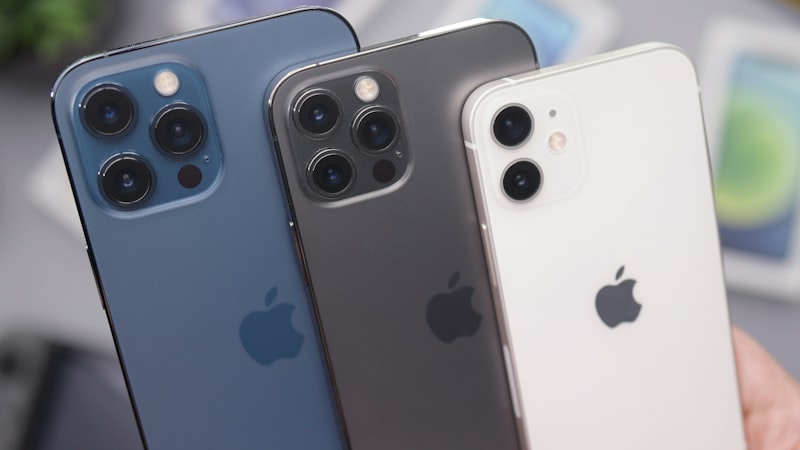
Haptic Touch succeeded the pressure-sensing 3D Touch, simplifying the interaction model. While 3D Touch relied on varying levels of screen pressure to trigger different actions (like 'Peek and Pop'), Haptic Touch operates on a duration-based mechanism. A sustained press on the screen now triggers contextual menus and shortcuts, accompanied by a precise haptic vibration delivered by the Taptic Engine. This shift streamlined the interaction, making it more intuitive and consistent across the iPhone lineup.
Understanding Haptic Touch Mechanics and Settings
At its core, Haptic Touch leverages the Taptic Engine to provide distinct vibrational feedback, confirming that an action has been registered. This feedback is not merely a generic buzz; it's a nuanced vibration designed to mimic the feeling of a physical click or a subtle thud, creating a more immersive and responsive experience. The key to customizing Haptic Touch lies in adjusting the duration of the press required to activate these interactions.
To access Haptic Touch settings, navigate to Settings > Accessibility > Touch > Haptic Touch. Here, you'll find options to control the interaction duration: 'Fast' or 'Slow'. There's also a 'Touch Duration' test area where you can experiment with your chosen setting.
Fast Duration: For Efficiency and Power Users
Selecting the 'Fast' Haptic Touch duration reduces the time required for a long press to register. This setting is ideal for users who prioritize speed and efficiency in their daily iPhone use. With a fast duration, you can quickly:
- Access App Shortcuts: A brief press on an app icon instantly brings up a contextual menu with quick actions, such as composing a new message from the Messages app or launching a specific camera mode.
- Preview Content: Glance at links, emails, or photos without fully opening them. A quick Haptic Touch on a web link might show a preview, allowing you to decide whether to navigate to the page.
- Interact with Lock Screen Controls: Swiftly activate the flashlight or camera directly from the Lock Screen.
- Manage Notifications: Quickly expand notifications to view more details or access quick actions like replying to a message.
The 'Fast' setting minimizes delay, making your interactions feel more immediate and fluid. It's particularly beneficial for power users who rely on shortcuts and contextual menus to navigate their iPhone quickly and efficiently.
Slow Duration: Enhancing Deliberation and Accessibility
Conversely, the 'Slow' Haptic Touch duration requires a longer, more deliberate press to activate an action. This setting is invaluable for users who prefer a more controlled interaction or require enhanced accessibility features. Benefits of the 'Slow' duration include:
- Reducing Accidental Activations: Users with unsteady hands or those who frequently brush the screen inadvertently will find the 'Slow' setting helps prevent unintended actions. This can significantly improve usability and reduce frustration.
- Increased Deliberation: For tasks requiring precision, such as arranging app icons or interacting with complex menus, the slower activation time allows for more intentional input.
- Motor Accessibility: For individuals with certain motor control challenges, the extended duration provides a larger window to perform the required press, making the iPhone more accessible and user-friendly.
The 'Slow' setting ensures that every Haptic Touch interaction is a conscious choice, providing a more stable and forgiving user experience.
Haptic Touch and Your Display
While Haptic Touch is a software-driven feature that relies on touch duration, its effectiveness is deeply intertwined with the underlying display hardware and its ability to accurately register touch input. The Taptic Engine works in harmony with the display's touch sensor to provide that satisfying tactile feedback. It's worth noting that, unlike the pressure-sensitive 3D Touch, Haptic Touch is generally unaffected by the presence of a quality screen protector, as it doesn't rely on detecting force, only the duration of a contact. As we've explored in our guides on optimizing display calibration, ensuring your screen is performing at its best visually complements the tactile responsiveness of Haptic Touch, creating a holistic and superior user experience.
Customizing for a Personalized Experience
The beauty of Haptic Touch customization lies in its ability to adapt to individual preferences and needs. There's no single 'best' setting; the optimal choice depends entirely on your interaction style and any specific accessibility requirements. Experiment with both 'Fast' and 'Slow' durations in the test area within the settings to find what feels most natural and efficient for you.
By thoughtfully adjusting your Haptic Touch settings, you can unlock a more intuitive, responsive, and personally tailored iPhone experience. Whether you're a power user seeking lightning-fast shortcuts or someone who benefits from more deliberate interaction, optimizing Haptic Touch ensures your iPhone display responds precisely how you need it to.